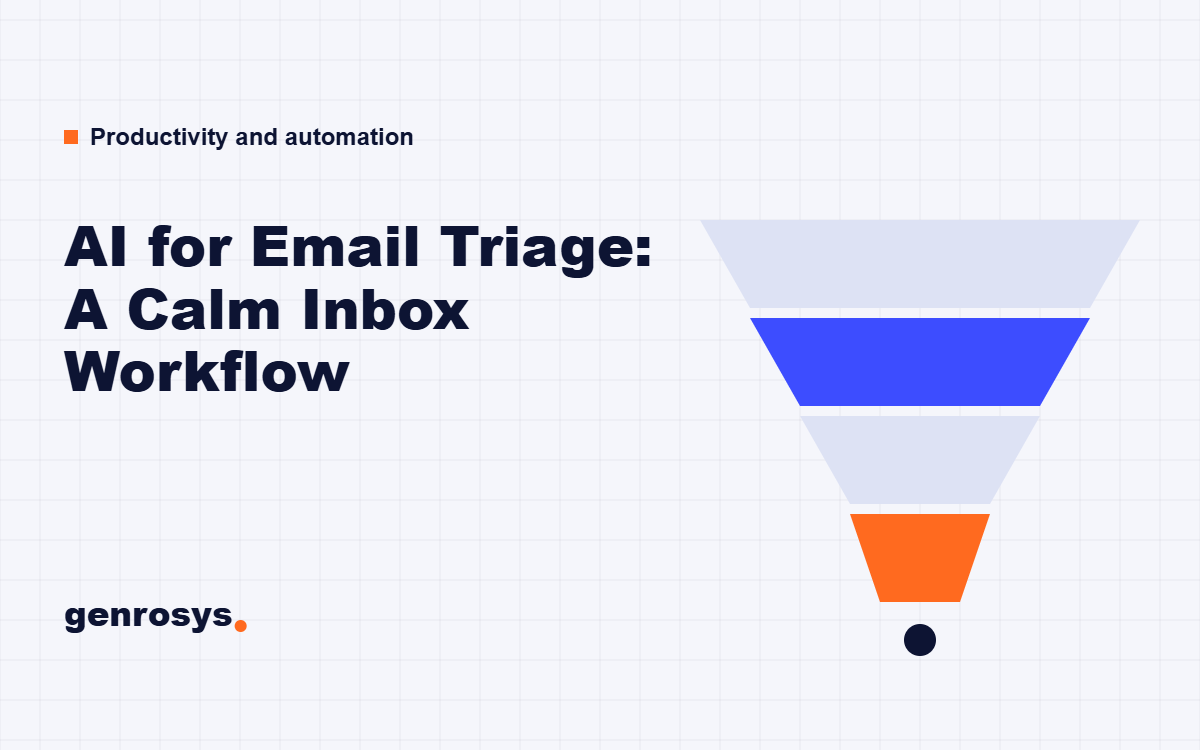
Most inboxes do not fail because of volume alone. They fail because every message arrives with the same visual weight. A contract question sits next to a newsletter, a favour request sits next to a receipt, and your brain has to make a fresh decision about each one. That constant sorting is the real cost of email, and it is exactly the sort of repetitive judgement that an AI assistant can help with, provided you set it up carefully.
This guide walks through a calm, practical email triage workflow. You will learn how to define categories that match your actual work, how to write instructions an assistant can follow, how to decide what should never be automated, how to keep private information safe, and how to review the results each week so the system improves rather than drifts. It is written for people who are not technical and who do not want an inbox that runs itself without oversight.
Key takeaways
- Triage means sorting and deciding what needs attention, not replying on your behalf. Keep those two jobs separate.
- Start with four or five categories that reflect your real decisions, such as act today, reply this week, read later, file, and ignore.
- Write rules in plain sentences, test them on a batch of old messages, and measure how often the assistant is wrong before you trust it.
- Never let an assistant send, delete or archive sensitive mail without a human check, and protect confidential content before you paste it anywhere.
- Review a small sample every week. Triage quality drifts as your work changes, and a ten minute audit keeps it honest.
Why email triage is a decision problem
Email feels like a communication problem, but most of the pain is a decision problem. Each message asks you silently: does this matter, does it matter now, and what do I need to do about it? When you answer those questions inbox by inbox, message by message, you burn attention on the sorting before you have done any of the work.
Triage is the practice of making those decisions in a batch, quickly, with a consistent set of categories. Hospitals use the idea because it prevents the loudest problem from crowding out the most important one. Your inbox works the same way. The message with the angriest subject line is rarely the one with the highest stakes.
What an AI assistant can and cannot do here
An assistant is good at reading a message and proposing a category, a one line summary and a suggested next step. It is fast, it does not get tired, and it applies your rules the same way at nine in the morning and at five in the afternoon. It is much weaker at knowing what you know: the history behind a client relationship, the unwritten reason a colleague is sensitive about a topic, or the fact that a short message from a particular person always means trouble.
That gap is why the workflow in this guide keeps you in charge of consequences. The assistant proposes, you decide. If you want a wider introduction to how language models handle text like this, the explainer on what a large language model is is a useful background read.
The three jobs people confuse
- Sorting: deciding which bucket a message belongs in.
- Summarising: compressing a long thread into a few lines so you can decide faster.
- Replying: writing and sending a response. This is the riskiest job and the one you should automate last, if at all.
Most failed email automations try to do all three at once. A calm workflow separates them, starts with sorting, adds summaries when sorting is reliable, and treats drafting replies as an optional extra.
Audit your inbox before you automate it
Before you write a single rule, spend twenty minutes looking at what actually arrives. Rules built from imagination tend to fail on the first real week. Rules built from observation tend to hold.
A twenty minute inbox audit
- Open your last 100 received messages, across at least two weeks so a quiet or busy stretch does not skew the picture.
- For each message, write down in a spreadsheet the sender type (client, colleague, supplier, automated, newsletter, unknown), what you did with it, and how long it took.
- Count how many needed a decision from you, how many only needed reading, and how many needed nothing at all.
- Note any message you would have been upset to miss. These are your protected cases and they shape the rules more than anything else.
- Look for patterns. Messages from the same ten senders usually make up a surprising share of the total.
Most people discover that a large part of the inbox needs no decision at all. That is good news. Those messages can be filed, labelled or muted without any intelligence at all, using the ordinary filters your email provider already offers. Save the assistant for the messages where judgement is required.
| Message type | Typical action | Best tool |
|---|---|---|
| Receipts, confirmations, notifications | File and forget | Plain filters and labels |
| Newsletters and updates | Read later or ignore | Filters, plus an optional weekly digest |
| Questions from colleagues | Reply or delegate | Assistant suggests priority, you decide |
| Client or customer requests | Reply with care | Assistant summarises, you reply |
| Unknown senders | Verify before acting | Human review only |
Notice how the cheap tool handles the predictable mail and the assistant handles only the ambiguous middle. That division keeps costs down, reduces risk and makes the whole system easier to explain to colleagues.
Design categories that match your decisions
Categories should describe what you will do, not what the message is about. A folder called Marketing tells you nothing about what to do next. A category called Reply this week tells you exactly what to do.
A starter set of five
- Act today: a deadline, a blocker for someone else, or a message from a person whose requests you always prioritise.
- Reply this week: a real question or request that is not urgent.
- Read later: useful information with no action attached.
- File: records you may need to find again, such as invoices and confirmations.
- Ignore or unsubscribe: noise you have not yet removed at the source.
Resist the urge to add more. Every extra category makes the assistant less consistent and makes you less likely to look at the results. If two categories lead to the same action, merge them.
Define each category in one sentence
Write a plain sentence for each category that includes both the test and an example. The sentence is what you will paste into the instructions later, so precision pays off.
| Category | Definition to give the assistant | Common mistake |
|---|---|---|
| Act today | Needs my action within 24 hours or blocks another person | Treating anything with the word urgent as urgent |
| Reply this week | A person is waiting for an answer but there is no deadline within 24 hours | Mixing it with Act today until everything is urgent |
| Read later | Information I may want but no one is waiting on me | Letting it grow into a second inbox |
| File | A record or receipt with no action needed | Filing things that actually contain a question |
| Ignore | Promotional or automated mail with no value to me | Ignoring a message because the sender looks automated when it is not |
The mistake column is worth keeping. Each one is a failure you can test for when you evaluate the assistant in a later step.
Write instructions the assistant can follow
The quality of triage depends mostly on the instructions. Vague instructions produce inconsistent sorting. Specific instructions, with examples, produce results you can check. The principles are the same ones covered in the guide to writing better prompts: state the role, the task, the rules, the format and a few examples.
A reusable instruction template
Adapt the wording below to your own work. Keep it in a note so you can version it and improve it over time.
- Role: You help me sort incoming email. You never send or delete anything. You only suggest.
- Categories: Use exactly these five labels and no others, with the definitions above.
- Protected cases: Anything mentioning a legal matter, a complaint, a payment problem, a health matter or a named person from my priority list is always Act today, and must be flagged for human review.
- Output: For each message give the category, a summary of at most twenty words, and one suggested next step.
- Uncertainty: If you are not sure, say so and choose the more cautious category.
Give examples of hard cases
Add four or five real, anonymised examples of messages that sit on the boundary between categories, with the correct answer. A short example teaches more than a paragraph of rules. Include one example where the polite wording hides an urgent request, and one where an alarming subject line hides a trivial message.
Ask for reasons, not just labels
When you first test the system, ask the assistant to give a one sentence reason for each category. Reasons make mistakes visible. If the assistant says a message is urgent because it contains an exclamation mark, you know the rule needs tightening. Once accuracy is steady you can drop the reasons to save reading time.
Test it on old mail before trusting it
Never switch on a triage system and hope. Run it on a batch of messages where you already know the right answer.
A simple evaluation
- Pick 40 old messages that you have already handled, including some from your protected cases.
- Sort them yourself first into your five categories and record the answers.
- Ask the assistant to sort the same messages using only your instructions.
- Compare. Count agreements, and for every disagreement note which direction the error went.
- Adjust the instructions and run the test again on a fresh batch of 40.
Direction matters more than the raw count. An assistant that sometimes marks a trivial message as Act today wastes a little of your time. An assistant that sometimes marks a real deadline as Ignore can cost you a client. Tune for the cautious direction, even if it makes the system slightly noisier.
| Error type | Cost | How to respond |
|---|---|---|
| Important message marked low priority | High | Add the pattern to protected cases and retest |
| Trivial message marked urgent | Low | Accept some of this, or tighten the definition |
| Wrong category between two similar labels | Medium | Merge categories or add a boundary example |
| Invented detail in a summary | High | Require quoting from the message and always check the original |
The last row matters. Language models can produce summaries that sound confident while adding or distorting a detail. The guide to AI hallucinations and how to reduce them explains why, and the habits in how to check AI output for mistakes apply directly to summaries of email threads.
Protect private and confidential mail
Email contains more sensitive information than almost any other system you use. Names, addresses, contracts, health matters, financial details and the private opinions of colleagues all pass through it. Before connecting any assistant to your inbox, decide what it is allowed to see.
Questions to answer first
- Who is the provider, and what do their terms say about storing or reusing the content you send?
- Does your employer or a client contract restrict where their information can be processed?
- Can you exclude certain senders, labels or folders from the assistant entirely?
- Who else can see the results, such as a shared assistant account or a team workspace?
If you work inside an organisation, check the written rules first. The guide on protecting company data when using AI tools covers the main risks, and a team that has not yet agreed its boundaries can use how to write an AI use policy for your team as a starting point.
A sensible default
Keep the most sensitive categories out of the assistant altogether. Anything from legal advisers, medical providers, human resources or financial institutions is better handled by hand. You can still use ordinary filters to label it so it stands out. This is general information, not legal advice, and the rules that apply to you depend on your location, your industry and your contracts.
Decide what must stay manual
The most important design decision is where the automation stops. A calm inbox is not one where the machine does everything. It is one where the machine does the boring parts and you do the parts that need you.
| Action | Automate? | Reason |
|---|---|---|
| Applying a label or category | Yes | Easy to see and easy to undo |
| Writing a short summary | Yes, with checks | Saves reading time but can contain errors |
| Drafting a reply for you to edit | Carefully | You remain the sender and the final reader |
| Sending a reply automatically | Rarely | Tone, facts and context can go wrong in public |
| Archiving or deleting | Only for low value mail | Mistakes can be hard to notice |
| Replying to unknown senders | No | Phishing and social engineering risk |
Beware instructions hidden in messages
A message that reaches your inbox is data, not a command. Some incoming messages contain text aimed at the assistant, such as a line telling it to forward the thread or ignore its rules. A well set up system treats all message content as material to be sorted, never as instructions to be followed. If you connect an assistant that can take actions, such as forwarding or sending, keep those abilities switched off, or require your approval for each one. The guide to AI agents for non-technical readers explains why giving a tool the ability to act raises the stakes.
Build a daily and weekly triage routine
A workflow is only as calm as the habit that surrounds it. Without a routine, you will still check the inbox constantly and the assistant will become one more thing to look at.
A daily rhythm
- Morning, ten minutes: run the triage pass, then read only the Act today list. Decide what happens to each item and put the work on your calendar or task list.
- Midday, ten minutes: check for new Act today items and clear quick replies.
- Late afternoon, fifteen minutes: work through Reply this week, answering what you can and scheduling the rest.
- End of day, two minutes: confirm Act today is empty or has a plan attached to every item.
Outside those windows, close the inbox. The point of triage is that you no longer need to look at it to know nothing is on fire.
A weekly review
Once a week, spend ten minutes checking a random sample of 20 sorted messages. Look at three things: was the category right, was the summary accurate, and did anything important end up in the wrong place? Note any new patterns, such as a new client or a new type of automated mail, and update the instructions accordingly.
Checklists and templates you can copy
Here are three short templates you can adapt. Keep them somewhere easy to reach and revise them when your work changes.
Setup checklist
- Audit of 100 recent messages completed.
- Five categories defined in one sentence each.
- Protected cases and priority senders listed.
- Sensitive folders and senders excluded from the assistant.
- Evaluation run on 40 old messages with the error directions recorded.
- Actions limited to labelling and summarising for the first month.
Weekly audit template
| Question | Where to look | Action if the answer is no |
|---|---|---|
| Was the category right for most of the 20 sampled messages? | Sample list | Add boundary examples to the instructions |
| Were summaries accurate against the originals? | Summaries beside source messages | Require short quotes and check more often |
| Did any protected case slip through? | Act today and Ignore lists | Add the pattern to the protected list |
| Is Reply this week shrinking or growing? | Count at start and end of week | Block time or reduce incoming volume at source |
Frequently asked questions
Can AI sort my email without reading it?
No. To sort a message, an assistant has to process its content. That is why privacy decisions come before setup, and why plain filters are better for mail that needs no judgement.
How many categories should I use?
Four or five is a good starting point. Define each by the action you will take, and merge any two categories that lead to the same action.
How accurate does the assistant need to be?
There is no single number. What matters is the direction of errors. Test on old mail and make sure important messages are never marked low priority, even if that makes the system a little noisier.
Should I let the assistant reply for me?
Treat it as a drafting aid at most. You stay the sender and read every message before it goes out, especially anything involving money, contracts, complaints or people you do not know.
What if my employer has not said anything about AI tools?
Ask before connecting a work inbox. Client contracts and company rules may limit where information can be processed, and it is better to have a clear answer than an assumption.
How long does it take to set up?
The audit and category design take an afternoon. Testing and tuning take a week or two of light attention. After that, the weekly review takes about ten minutes.
Conclusion
An AI assistant can take a real weight off your inbox, but only if you treat it as a sorting aid with clear limits. Audit your mail, define a small set of action based categories, write precise instructions, test on old messages and protect the sensitive material. Keep sending, deleting and anything risky in your own hands.
Combine triage with a good prompting habit and a reliable way to check output, and the system will stay useful long after the novelty wears off. For next steps, read how to write better prompts, revisit how to check AI output for mistakes, and plan the time you free up with how to plan your week with AI.